



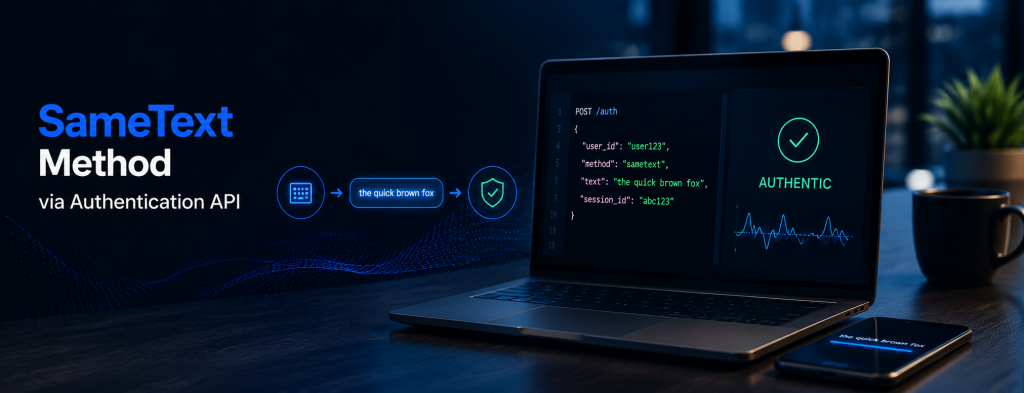
What is the SameText method and how to use it?
At TypingDNA, we have two main ways of comparing typing patterns: SameText and AnyText. These options exist because TypingDNA technology is used in different situations.
SameText requires that each new typing pattern is collected on exactly the same text as the previously saved patterns. This might seem limiting, but it enables the highest possible accuracy. Recently this method received a breakthrough accuracy improvement, that makes TypingDNA comparable to fingerprint and face recognition, read more.
AnyText is an older method that we do not recommend except for very few use cases, as it is less accurate and requires a lot of text (the user has to type at least 140 characters). Its benefit is that it does not require the same text—users can type anything, and the typing pattern can still be compared to earlier patterns of similar type (but different content).
In this explanation, we will only focus on SameText.
The SameText method considers how a person types a short phrase (for example, a 4-word combination or a brief sentence). One such example is: “anything mosquito rainbow angel” You can test your short phrase strength here to make sure it’s very well performing (high strength).
During both enrollment and verification, the user must type exactly that phrase. One or two typos can be allowed, but only if you know precisely what text is required (Case 1 bellow).
Required settings for SameText to work
Type 2 is recommended.
The SameText method works with type:1 and type:2 patterns, but we strongly recommend using type:2. Type:2 is a linear typing pattern, including each character’s timing in the order it was typed. If mistakes occur and are corrected before submission, the TypingDNA recorder will omit them if the text parameter is set correctly.
Type:1 is still supported, particularly for sensitive text such as passwords. However, for best accuracy, we recommend type:2 with a dedicated, non-secret phrase. Type:2 captures more detailed typing information, including character sequences, and benefits from our newer AI models. Keep in mind that type:2 retains exact key values, which means it is strictly not recommended for sensitive data (such as passwords or sensitive personal information).
Although SameText (type:1) can work with usernames, emails and passwords, we recommend using a dedicated, fixed phrase instead. A carefully selected phrase of around 30-40 characters (typically 4-7 words) provides more consistent and informative typing patterns, including better keyboard coverage. Usernames and passwords vary significantly in length and complexity, and password changes, autofill or password managers can affect the consistency of captured patterns.
A fixed phrase also allows the use of type:2 patterns, which benefit from our most advanced authentication models. The phrase doesn’t need to be secret and can even be identical for all users, provided each user enrolls their own typing patterns.
Finally, using SameText with type:2 method allows for a full separation from the login step, therefore TypingDNA authentication can be performed entirely independent from any other authentication step.
The text param is mandatory.
For SameText to work, the typing pattern must be gathered on the exact text. This text may be known beforehand or may be determined by the user’s input.
Case 1: the text to be typed is known (e.g. “anything mosquito rainbow angel”).
For example, if the required text is “anything mosquito rainbow angel,” then after the user types it, you call:
var typingPattern = tdna.getTypingPattern({ type: 2, text: "anything mosquito rainbow angel" });Case 2: the text is not known (e.g. “username password email”).
For instance, the user types something into an input text field called textInput. You still need the SameText method to capture exactly what the user typed, but omit any potential mistakes the user typed and deleted after, so you call:
var typingPattern = tdna.getTypingPattern({ type: 1, text: textInput.value });Even if the user made mistakes and corrected them, the final textInput.value will match their submitted text. The TypingDNA recorder then extracts the correct keystroke data from its internal log. This method works with both type:1 and type:2, however for sensitive data such as passwords, type:1 is recommended, although our type:1 authentication models have lower accuracy.
What if the text param value is different or omitted?
If the text parameter changes between calls, the text ID also changes. Because we use an FNV hash to create a unique TextID for each text, any new text is treated as a separate pattern. Depending on your settings, this could be enrolled as a new pattern (if /auto endpoint is used instead of /verify) or compared using the AnyText method (if /verify endpoint is used, which is less accurate for short texts).
If the text parameter is omitted entirely, the authentication will default to the AnyText method—again less accurate for short texts.
Bottom line: Always use the same text parameter value for the SameText method.
Please note that if the text parameter contains text such as a password or a PIN, when the user changes these, the typing pattern will need to be reset (since the text ID is now different).
Auto-enroll
Auto-enroll allows TypingDNA to continuously improve authentication accuracy by automatically saving new typing patterns after successful, high-confidence verifications.
Traditionally, you would:
- Enroll a typing pattern for a new user using
/save. - Repeat until at least 3 patterns are enrolled.
- Start authenticating the user using
/verify. - After a successful verification with a sufficiently high score, submit the new pattern using another
/savecall to strengthen the user’s enrolled patterns.
With Auto-enroll enabled, step 4 happens automatically, removing the need for additional API calls.
Recommended Authentication API settings:
- Auto-enroll: ON
- Force Initial Enrollments: OFF
- Minimum Initial Enrollments: 3
- Auto-enroll Score Threshold: 85 (typically 80-90)
With these settings, the first 3 typing patterns must be enrolled using /save. Once enrolled, subsequent /verify calls automatically save new patterns when their authentication score reaches the Auto-enroll threshold.
Verification settings: We recommend quality=2 (Balanced, our newer models are optimized for this setting), with an authentication acceptance threshold selected according to your use case (typically 50-80). This threshold is independent of the Auto-enroll threshold (usually a higher value), so a user may successfully authenticate without necessarily having their latest pattern enrolled.
Alternatively, enabling Force Initial Enrollments allows /verify to automatically enroll the first samples, without authentication, and without the need to call /save instead, until the minimum enrollment count is reached. However, we generally recommend keeping it OFF and explicitly handling initial enrollment through /save.
The /auto API endpoint (not recommended)
Separately, you could use the /auto endpoint instead both /verify and /save and our server automatically decides when to enroll, when to verify, and when to do both. With the /auto endpoint there is nothing to set up (e.g. auth or enroll thresholds, minimal initial samples), as it is best set up for strong authentication and enrollment with 3 previous samples.
However, we do not recommend using the /auto endpoint but rather stick to /save and /verify, and Auto-enroll ON.
To learn more about all endpoints see TypingDNA API documentation.